How to Cancel CodeSpark Academy (iOS, Android & Web)
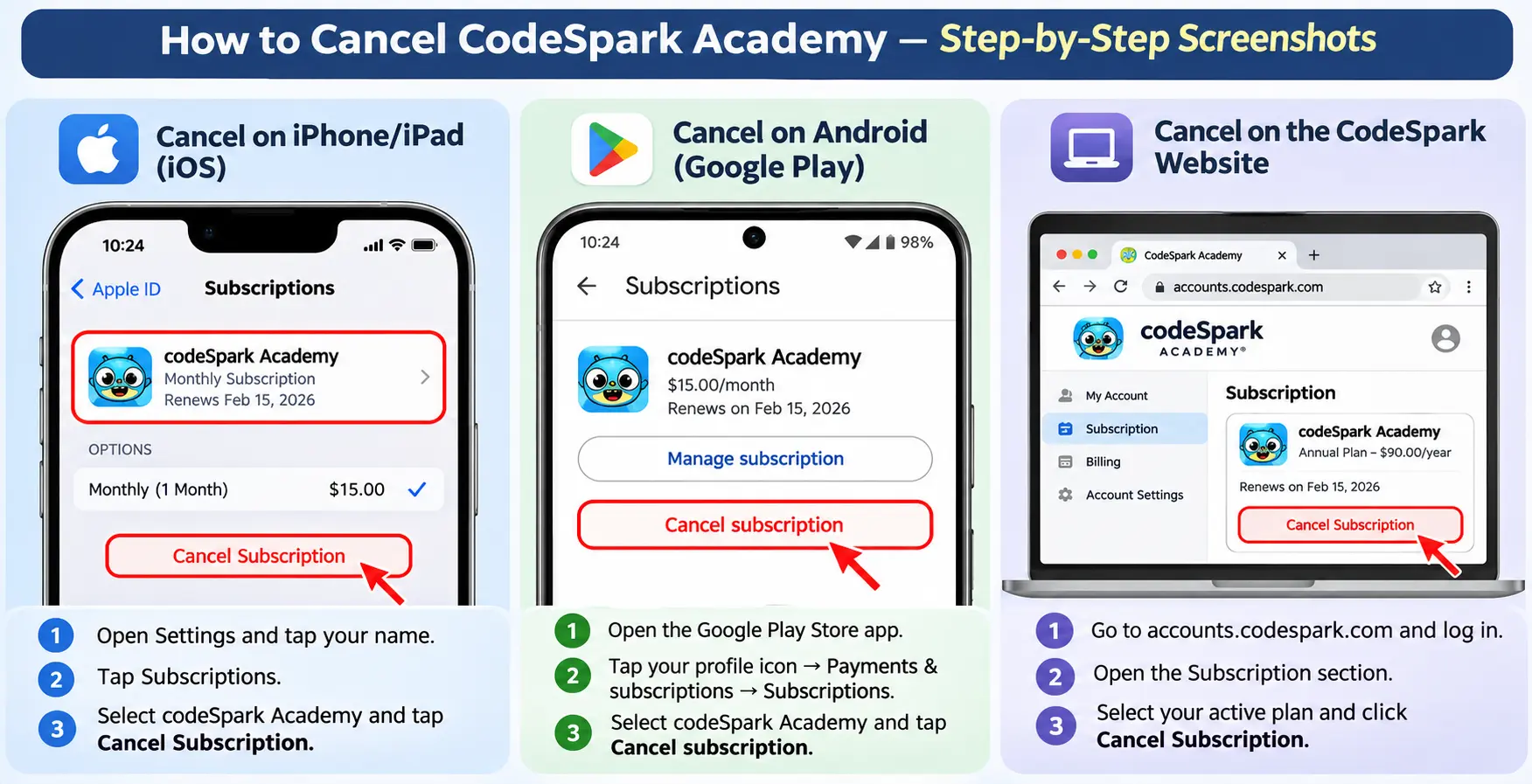
If you’re ready to cancel your CodeSpark Academy subscription, the exact steps depend on where you originally subscribed — not which device you currently use the app on. You could be using CodeSpark on your child’s iPad every day, but if you signed up through the CodeSpark website, cancelling in the App Store won’t do anything.
Below are the complete steps for all four billing platforms — iOS, Android, the CodeSpark website, and Amazon — along with the refund policy and answers to the questions parents ask most before cancelling.
Important: Uninstalling the App Does NOT Cancel Your Subscription
This is the single most common mistake parents make, and it’s worth stating clearly before anything else: deleting or uninstalling the CodeSpark Academy app from your phone or tablet does not cancel your subscription or stop future charges.
According to CodeSpark’s own support documentation, because the app runs across multiple platforms and devices, removing the app only removes it from that one device — your subscription (and billing) continues in the background until you cancel it directly through the platform you paid on. If you’ve ever deleted an app assuming that would stop the charges, this is why the next payment still showed up.
How to Cancel CodeSpark Academy on iPhone/iPad (iOS)
If you subscribed through the Apple App Store, cancel it through your Apple ID settings, not inside the CodeSpark app itself.
- Open Settings on your iPhone or iPad.
- Tap your name at the top of the screen.
- Tap Subscriptions.
- Select codeSpark Academy from the list.
- Tap Cancel Subscription.
You’ll keep access until the end of your current billing period — Apple does not refund the remaining days automatically.
Alternative route: You can also manage this through Settings on a Mac, or via appleid.apple.com on any browser if you don’t have the device handy.
How to Cancel CodeSpark Academy on Android (Google Play)
If you subscribed through the Google Play Store:
- Open the Google Play Store app on your Android device.
- Tap your profile icon in the top-right corner.
- Tap Payments & subscriptions → Subscriptions.
- Select the codeSpark Academy subscription.
- Tap Cancel subscription and confirm.
If the cancel button doesn’t appear: this happens occasionally due to a sync issue between Google Play and CodeSpark’s billing system. In that case, email [email protected] with your Google Play receipt ID (it starts with “GPA”) from your original purchase confirmation email, and their team will cancel it manually on their end.
How to Cancel CodeSpark Academy on the Website
If you signed up directly on codespark.com rather than through an app store:
- Go to accounts.codespark.com/my-account and log in.
- Navigate to your account’s subscription section.
- Select the active CodeSpark Academy plan.
- Choose Cancel Subscription and follow the confirmation prompt.
How to Cancel a CodeSpark Subscription Bought Through Amazon
If you subscribed via an Amazon-billed purchase (common with Amazon Kids+ bundles or direct Amazon app purchases):
- Go to Amazon.com and sign in to the account used for the purchase.
- Navigate to Your Account → Memberships & Subscriptions (or go directly to amazon.com/gp/mas/your-account/myapps/yoursubscriptions).
- Find codeSpark Academy in the list.
- Select Cancel Subscription.
This route is the one most “how to cancel” guides skip entirely, so if you’re not sure which platform you billed through, check your Amazon order history first — it’s easy to miss.
Will I Get a Refund If I Cancel CodeSpark Academy?
Refund eligibility depends entirely on which plan you’re on:
CodeSpark Academy Refund Policy by Plan Type
| Plan Type | Refund Policy |
|---|---|
| Monthly | No refund for the current billing period once charged; cancel before the renewal date to avoid the next charge |
| Annual | No prorated refund for unused months; cancel before the renewal date to avoid being billed for the next year |
| Lifetime (one-time payment) | No refunds at all — this is a final, non-refundable purchase |
The general rule across all recurring plans: cancellation stops future billing, it does not refund money already charged for the current period. If you’re on a monthly or annual plan and want to avoid being charged again, cancel a few days before your renewal date to be safe — platform processing can occasionally take a day or two.
What Happens to My Child’s Progress After You Cancel?
Cancelling stops future billing, but it doesn’t necessarily delete your child’s account or in-app progress immediately — access typically continues through the end of the period you’ve already paid for. If you want clarity on exactly how long your child’s profile, saved projects, and progress data remain accessible after that, or whether it’s permanently deleted, the safest step is to contact CodeSpark support directly ([email protected]) before cancelling, especially if your child has built games or projects they might want to export or screenshot first.
CodeSpark Academy Pricing (If You’re Reconsidering)
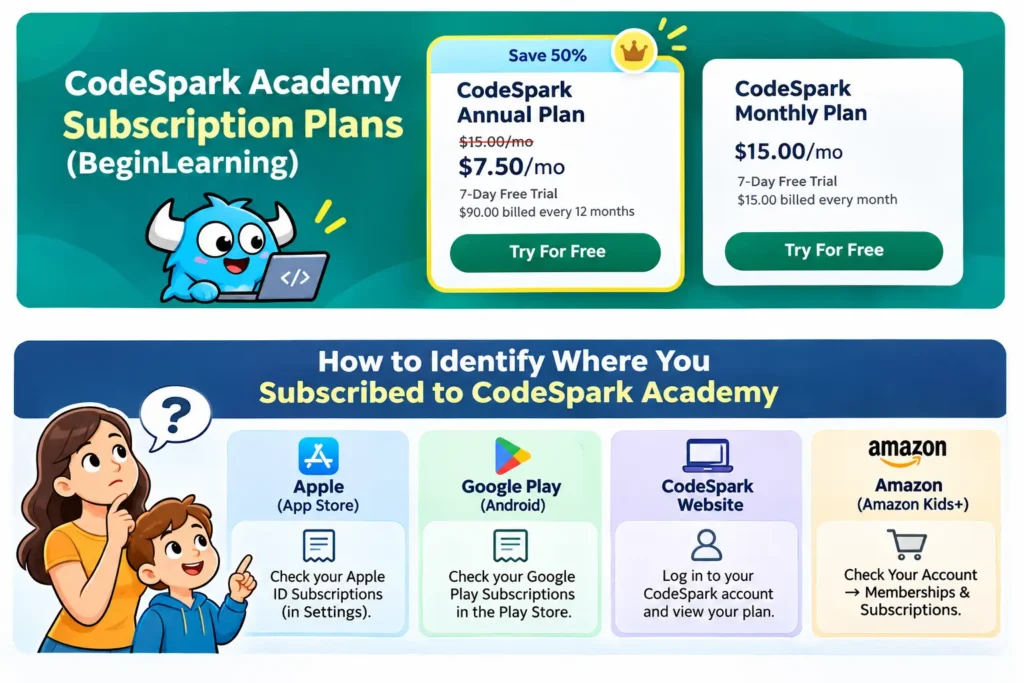
Before you cancel, it’s worth knowing what you’re actually paying compared to the alternatives:
CodeSpark Academy Pricing & Free Trial Plans
| Plan | Price | Free Trial |
|---|---|---|
| Monthly | $15.00/month | 7-day free trial |
| Annual |
$90.00/year (billed every 12 months, works out to $7.50/month) 50% off the monthly rate |
7-day free trial |
CodeSpark also sells one-time gift plans (these function as a lifetime or fixed-term purchase rather than a recurring subscription, so there’s nothing to “cancel” later):
CodeSpark Academy Gift Plans & Pricing
| Gift Plan | Price |
|---|---|
| 6-Month Gift | $59.95 |
| 12-Month Gift |
$99.99
(regular price |
| Lifetime Gift |
$199.99
(regular price |
If cost is the main reason you’re cancelling rather than the app itself, the annual plan already works out to half the monthly rate, and the lifetime gift option is frequently discounted — worth comparing before you walk away entirely if your child is actively using it. For a full breakdown of what’s actually inside each plan, see our complete CodeSpark Academy review.
Looking for Alternatives Instead of Cancelling?
If the reason you’re cancelling is that CodeSpark isn’t the right fit for your child rather than price, it’s worth checking how it stacks up against other coding apps before you commit to switching:
- CodeSpark vs. ScratchJr: Which Is Better for Younger Kids?
- Tynker vs. CodeSpark: Which Coding App Is Actually Right for Your Child?
Frequently Asked Questions
CodeSpark Academy Subscription & Cancellation FAQs
Sources: CodeSpark Academy official support documentation (support.beginlearning.com), CodeSpark Academy pricing pages, and publicly available subscription terms as of 2026.
Sachin Sharma is a Tech AI Writer and Chief Editor at N4GM.com, simplifying how AI is transforming education and smart learning since 2019. With deep SEO expertise, he delivers reliable insights on AI learning tools and EdTech trends, helping students and educators navigate the future of technology.